“Signature Validity Is Unknown” in Adobe: Causes and Solutions
Why a signed PDF document shows a yellow warning (validity unknown) or a red cross (invalid) in Adobe Acrobat and Adobe Reader, what each color really means, and how to make the signature appear as valid. No technical knowledge needed.
A yellow signature is almost never a problem of the program that created the signature, and it is not a problem of Adobe either. It means that the certificate used for signing was issued by a certification authority whose root certificate is not trusted in Adobe. The document is intact and the signature is mathematically correct: Adobe only says that it cannot confirm who the signer is, because it does not know the authority that vouches for the signer.
Any program that signs with the same certificate gets the same yellow result, Adobe Acrobat included. The color changes only when the certificate changes, or when the person who checks the document tells Adobe to trust the authority (sections 4 to 6).
Who is this guide for?
- The people who receive signed documents and want to know whether they can rely on them: sections 1, 2 and 4 to 10.
- The people who sign documents and whose recipients see a yellow or a red signature: sections 2, 3 and 10 explain which certificate to use and what to avoid after signing.
- IT administrators who must configure many computers: sections 5 and 6.
Useful links
| What | Address |
|---|---|
| Adobe trust services: AATL and EUTL explained | https://helpx.adobe.com/acrobat/kb/trust-services.html |
| Members of the Adobe Approved Trust List (AATL) | https://helpx.adobe.com/acrobat/kb/approved-trust-list1.html |
| EU Trusted Lists (the qualified trust service providers) | https://eidas.ec.europa.eu/efda/tl-browser/ |
| European Commission validation tool (DSS) | ec.europa.eu/digital-building-blocks/DSS/webapp-demo/validation |
| Qualified eIDAS time stamps | https://qtsa.eu |
1. Green, yellow or red: what Adobe tells you
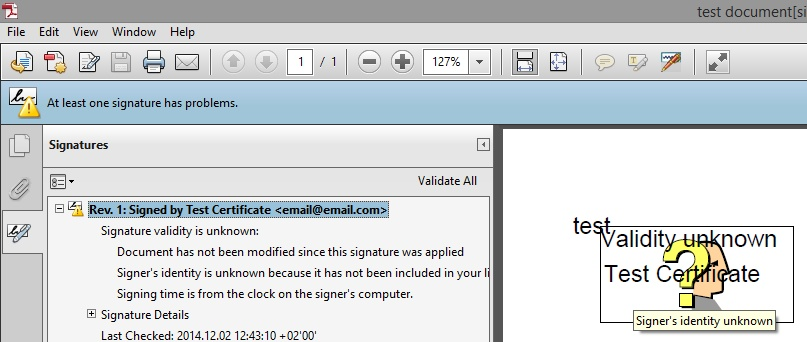
When you open a signed document, Adobe checks every signature and shows the result in the blue message bar above the document and in the Signatures panel. There are four results:
The texts are those of Adobe; the colors and the icons are simplified and can look slightly different in your version.
| Result | What Adobe says in the signature details | What it means | Read |
|---|---|---|---|
| Valid | Signature is VALID, signed by … | The document was not changed after signing, and the certificate chains up to an authority that Adobe trusts. | — |
| Unknown | Signature validity is UNKNOWN. usually together with Document has not been modified since this signature was applied | The document is intact. Adobe cannot confirm the identity of the signer: the root of the certificate is not trusted (most often), the time stamp is not trusted, or the revocation of the certificate cannot be checked. | Sections 2 to 9 |
| Invalid | Signature is INVALID. for example The document has been altered or corrupted since the signature was applied. | The document was changed after signing in a way that is not allowed, a certifying signature was violated, or the certificate was revoked when the document was signed. | Section 10 |
| Certified | Document certification is valid, signed by … | The first signature is a certifying signature of the author, and the document contains only the changes that the author allowed. A certification can be unknown or invalid for the same reasons as a normal signature. | Section 10.2 |
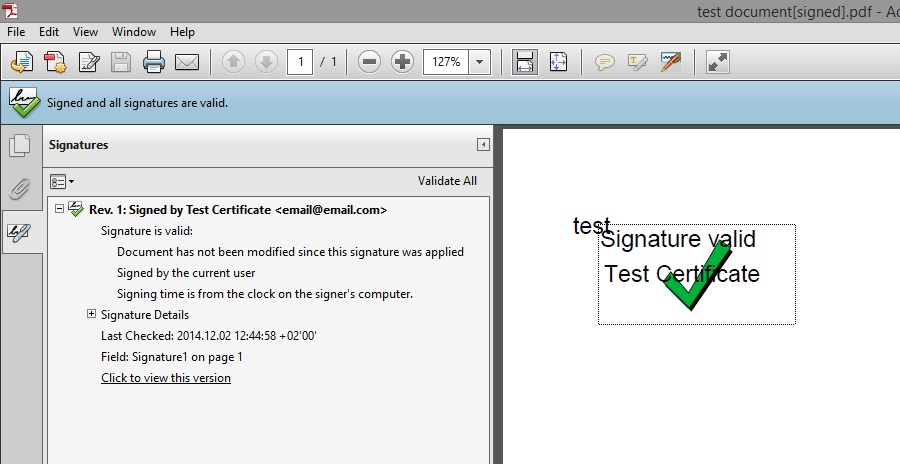
In the details of a yellow signature, Adobe almost always writes Document has not been modified since this signature was applied. This line is the proof that the signature is correct and that the content is exactly the one that was signed. What is missing is only the confirmation of the signer's identity, which depends on the certificate.
Where to read the details
- Open the Signatures panel. Click Signature Panel in the blue message bar (in the new interface of Acrobat you can also click the signature on the page).
- Open the properties of the signature. Right-click the signature in the panel and choose Show Signature Properties....
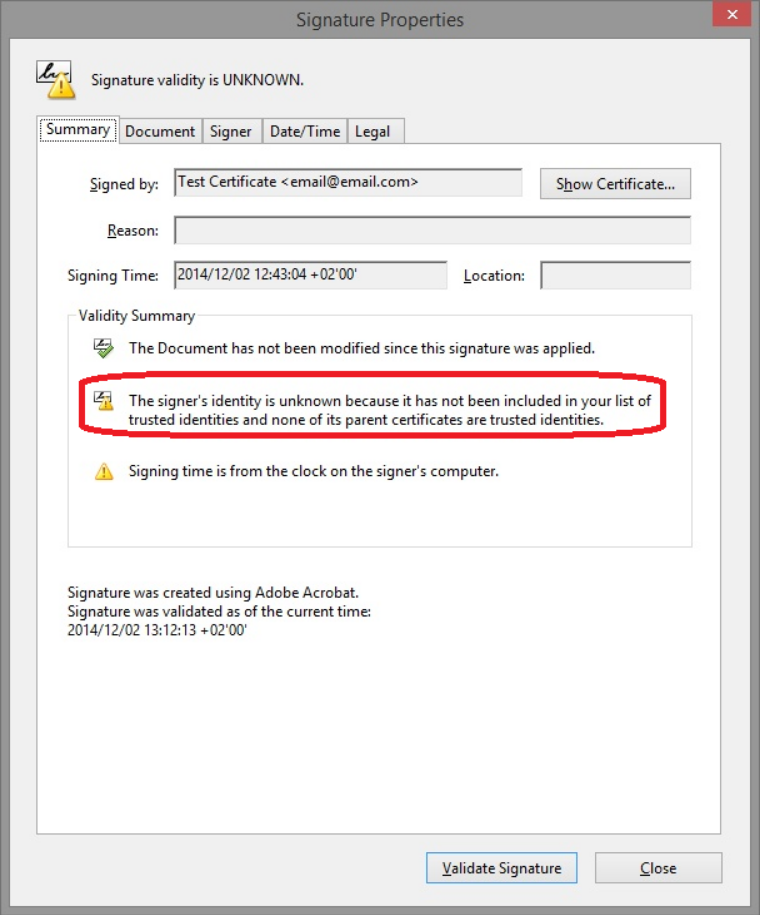
- Read the Validity Summary. Each line has its own icon. The line about the document tells you whether the content was changed; the line about the signer's identity tells you whether Adobe trusts the certificate.
2. Yellow: the certificate, not the software
Many signers think that a yellow signature means that the signing program made a mistake, and many recipients think that their Adobe Reader is not set up correctly. Neither is true. This section explains why.
2.1 Two separate checks
Adobe answers two different questions for every signature:
1. Was the document changed?
Adobe recomputes the fingerprint (the hash) of the document and compares it with the one inside the signature. This is pure mathematics: if even one character changed, the result is red. If it did not change, Adobe writes Document has not been modified.
This check is the same everywhere and does not depend on any setting.
2. Who signed it, and do I trust them?
Adobe looks at the signer's certificate and follows the chain of the authorities that issued it, up to the root certificate. If the root is in one of the lists that Adobe trusts, the identity is confirmed (green). If it is not, the identity is unknown (yellow).
This check depends only on the certificate and on the lists of the computer that opens the document.
The signing program takes part only in the first check: it computes the fingerprint and puts it, together with the certificate, in the signature. It cannot take part in the second check: no program can make Adobe trust a certification authority.
2.2 The chain of trust
A certificate is like an identity card: it is believable because of the authority that issued it. The signer's certificate is issued by a certification authority (often by an intermediate authority), which in turn is certified by a root authority. The root certificate is signed by itself, so it is trusted only if the program that checks the signature already has it in its list.
2.3 Where Adobe looks for trusted authorities
Adobe does not use the list of authorities of Windows by default. It keeps its own lists:
- the Adobe Approved Trust List (AATL), with the certification authorities from all over the world that Adobe has checked;
- the European Union Trusted Lists (EUTL), with the qualified trust service providers of the eIDAS Regulation;
- the Trusted Certificates (named Trusted Identities in the older versions), which the user of the computer adds by hand.
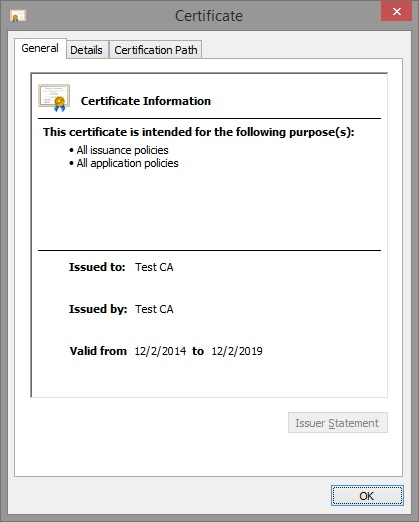
This is why the same certificate can look perfect in Windows (the Windows certificate window says This certificate is OK) and still be yellow in Adobe: Windows trusts many authorities, for example those of the web sites, which are not in the lists of Adobe. Windows and Adobe use different lists and different rules.
- certificates issued by the internal authority of a company or of an institution;
- certificates of a national or a commercial authority that is not a member of AATL and is not a qualified provider of the EUTL;
- certificates for e-mail (S/MIME), for web servers (SSL/TLS) or for code signing, even from a well-known authority: they are not document signing certificates;
- self-signed and test certificates, which nobody else trusts.
With these certificates the signature is yellow by design. It is correct, but the recipients must trust the authority themselves (sections 4 to 6).
2.4 A simple test that proves it
If you need to convince a recipient, or yourself, that the problem comes from the certificate and not from the software, any of these tests is enough:
- Read what Adobe says. The message is The signer's identity is unknown because it has not been included in your list of trusted identities and none of its parent certificates are trusted identities. It speaks about the certificate and its parents (the authorities), not about the program that signed.
- Sign the same document in Adobe Acrobat itself, with the same certificate. The result is exactly the same yellow signature, although Adobe created it.
- Trust the root certificate on your computer (section 4) and open the same file again. Nothing in the file changed, but the signature becomes green. If the color depended on the signing program, it could not change without signing again.
- Sign with a certificate from an AATL member or with a qualified certificate (section 3). With the same program, the signature is green on every computer, without any setting.
The validation tool of the European Commission (DSS) also reports the two checks separately: the integrity of the signature and the chain of the certificate. For a certificate that is not issued by a trusted provider it reports the signature as indeterminate (no trusted chain), while the cryptographic check of the signature passes. Do not upload confidential documents to a public service.
3. Certificates that Adobe trusts by default
The permanent solution, the one that makes the signature green on every computer without any setting, is to sign with a certificate whose root is in one of the lists that Adobe downloads automatically. This is a choice of the signer, made when the certificate is bought.
European Union Trusted Lists (EUTL)
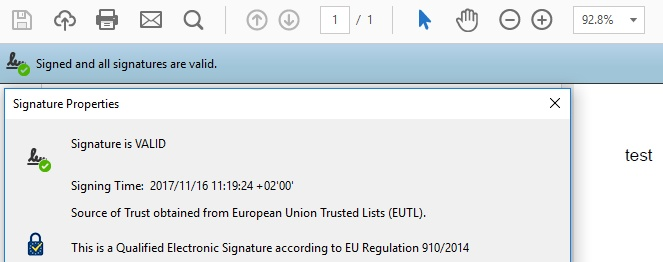
If the certificate is a qualified certificate for electronic signatures or seals, issued by a qualified trust service provider listed in the EU Trusted Lists, Adobe shows the signature as valid and says where the trust comes from. A qualified signature is also marked as such:
Many qualified providers also issue other certificates, from authorities that are not qualified. Adobe trusts only the qualified services of the EUTL. Ask the provider for a qualified certificate for electronic signatures (or for electronic seals, for a company).
Adobe Approved Trust List (AATL)
The AATL is the program of Adobe for the certification authorities all over the world. Its members issue document signing certificates that Adobe trusts automatically; their private key is kept on a hardware device (a USB token, a smart card or an HSM) or in a remote signing service. The list of members is published by Adobe: AATL members. Ask the provider explicitly for an AATL document signing certificate. (The older Adobe program, CDS, was replaced by AATL.)
Keep the trusted lists up to date
Adobe downloads the AATL and the EUTL from its servers. On a computer that is offline, or where the updates were turned off, even a certificate from these lists can be shown as yellow. To update the lists:
- Open the preferences. In the new Adobe Acrobat choose Menu → Preferences...; in the older versions Edit → Preferences... (or press Ctrl+K).
- Select Trust Manager. In the list Categories, select Trust Manager.
- Update both lists. Under Automatic Adobe Approved Trust List (AATL) updates and under Automatic European Union Trusted Lists (EUTL) updates, keep the option Load trusted certificates from an Adobe ... server ticked and click Update Now. Then open the document again.
For documents that are sent to many recipients, outside your company, choose an AATL document signing certificate or an eIDAS qualified certificate. A certificate of the company's own authority is fine for internal documents, when the IT department makes the root trusted on all the computers (sections 5 and 6).
4. Solution 1: trust the root certificate in Adobe
When the signer's certificate is not in the lists of Adobe, the person who checks the document can tell Adobe to trust the root authority of the certificate. This is done once per computer: after that, all the signatures made with certificates of the same authority are green on that computer. The signed document is not changed.
When you trust a root certificate, you accept every signature made with any certificate that this authority issued. Do it only for an authority that you know, for example the authority of your company or of a partner. If in doubt, compare the fingerprint of the root (tab Details of the certificate viewer, SHA-256 digest) with the one that the authority or the signer gives you.
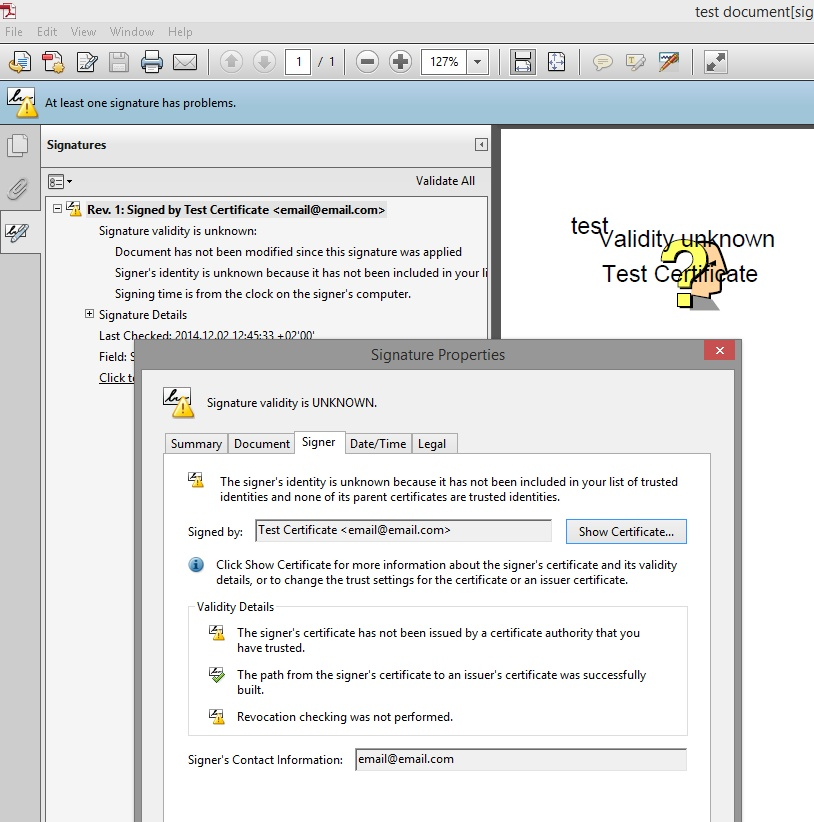
- Open the properties of the signature. In the Signatures panel, right-click the signature and choose Show Signature Properties.... The tab Signer explains the problem: the certificate was not issued by an authority that you have trusted.
- Open the certificate. Click Show Signer's Certificate... (in the older versions Show Certificate...). The Certificate Viewer opens.
- Select the root certificate. In the list on the left, click the topmost certificate of the chain: the root authority, not the signer's certificate.
- Add it to the trusted certificates. Open the tab Trust and click Add To Trusted Certificates... (in the older versions Add to Trusted Identities...). If Adobe shows a security question, click OK.
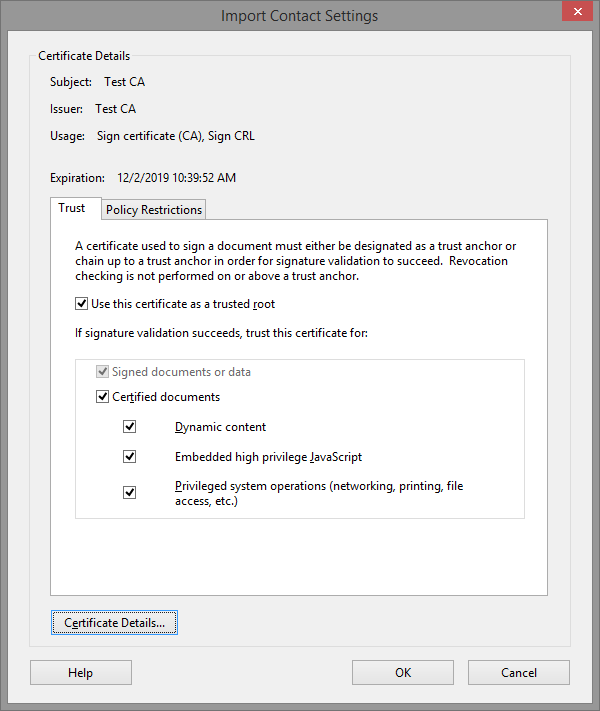
- Set the trust. In the window Import Contact Settings, tick Use this certificate as a trusted root and Certified documents. The other three options (dynamic content, JavaScript, privileged system operations) are not needed to validate signatures; tick them only if you need to run such content in the documents certified by this authority. Click OK.
- Validate again. Close the windows and click Validate All in the Signatures panel, or close the document and open it again. The signature is now green.
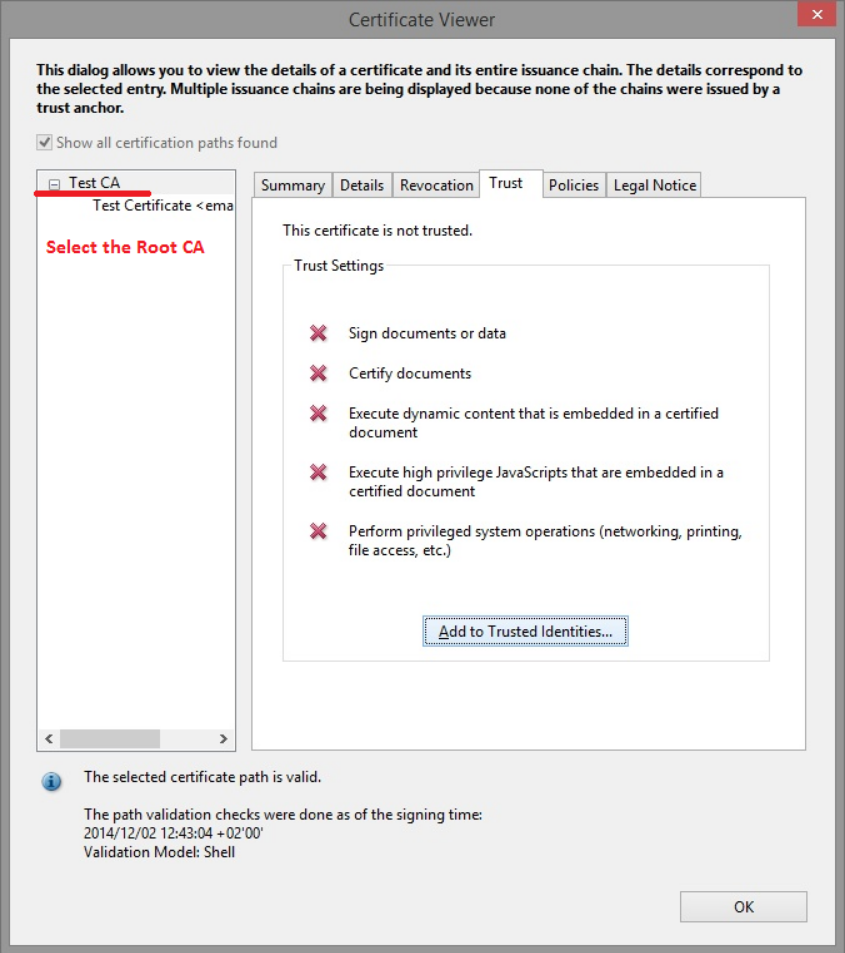
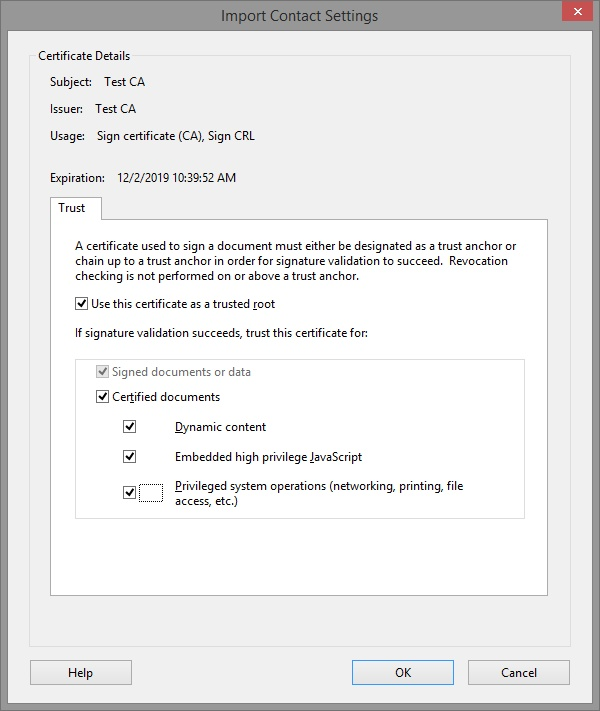
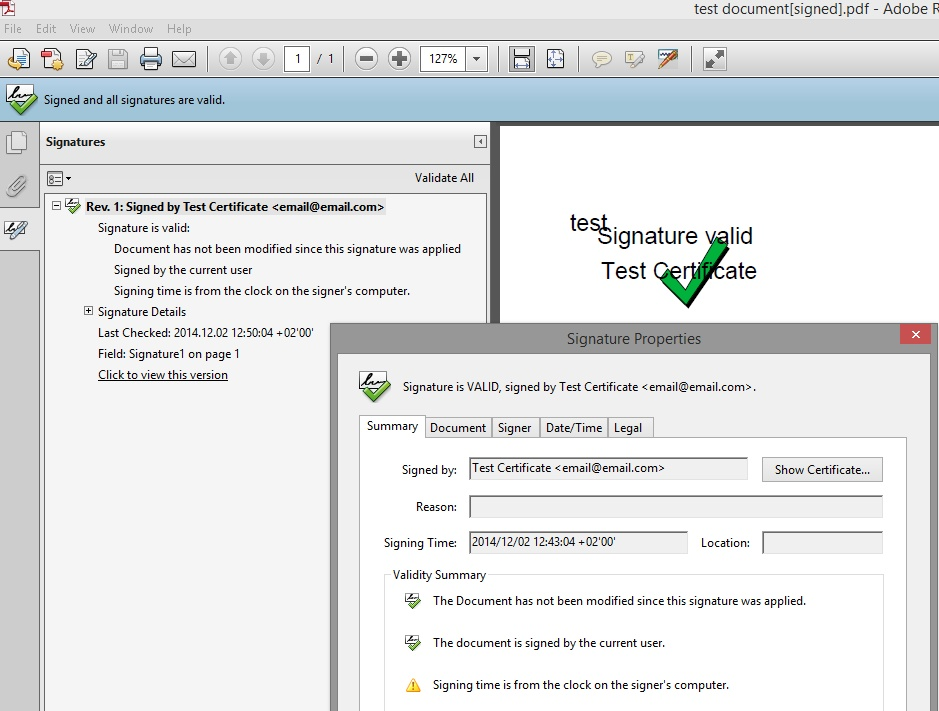
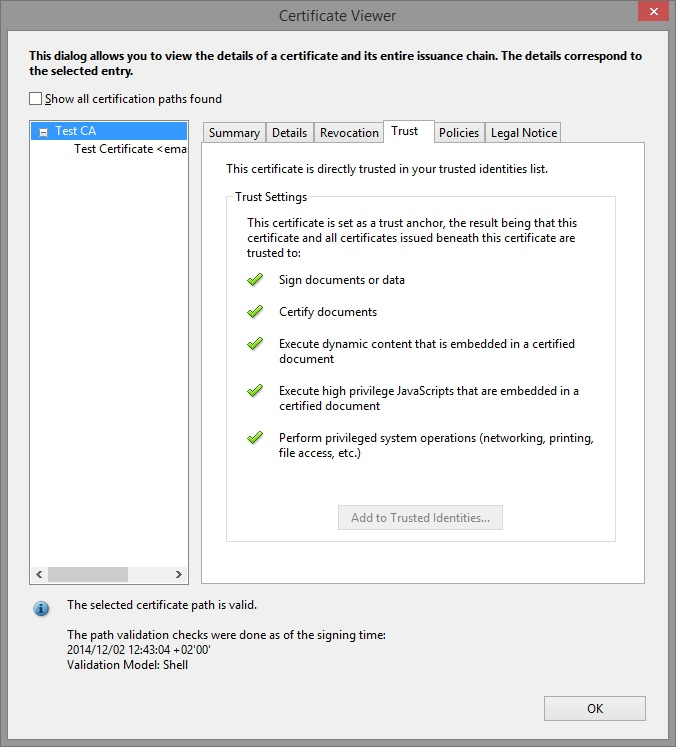
If you trust only the signer's certificate, the signatures of the other people of the same company stay yellow, and the signatures of the same person become yellow again when the certificate is renewed. Trusting the root covers all of them. For a self-signed certificate, the certificate is its own root.
5. Solution 2: use the Windows certificate store
Use this method when the root certificate of the signer's authority is already installed in Windows, in Trusted Root Certification Authorities. This is common in companies, where the IT department installs the root of the company's authority on all the computers, and with some smart cards and tokens, whose software installs the roots of the provider. Adobe can be told to trust the roots of Windows too.
Check that the root is installed in Windows
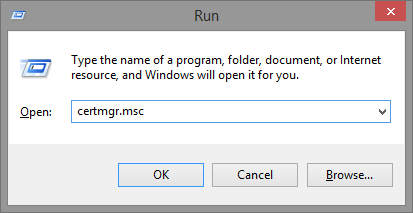
- Open the certificate manager. Press Windows+R, type
certmgr.mscand press Enter. - Look for the root. Open Trusted Root Certification Authorities → Certificates and look for the name of the authority (the Issued To column).
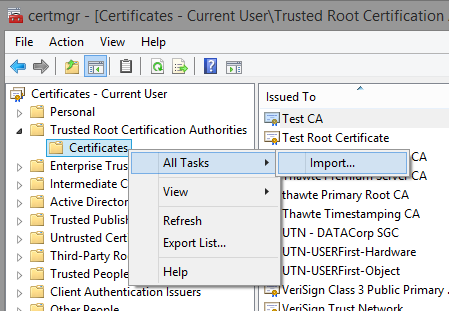
- Import it, if it is missing. Right-click Certificates → All Tasks → Import... and select the root certificate file (
.ceror.crt) that you received from the authority or from your IT department. Windows asks for a confirmation before it adds a root.
certmgr.msc.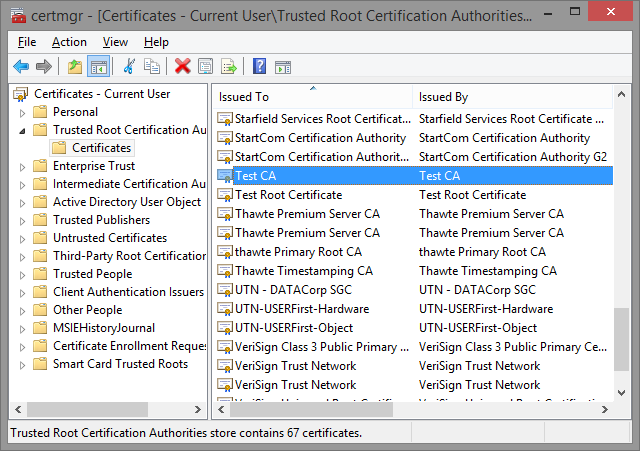
Tell Adobe to use the roots of Windows
- Open the preferences. Menu → Preferences... (older versions: Edit → Preferences...), or Ctrl+K.
- Open the verification settings. Select Signatures, and in the section Verification click More.... (In Adobe Reader XI and older: Security → Advanced Preferences... → tab Windows Integration, as in the picture.)
- Turn on Windows Integration. Under Windows Integration, Trust ALL root certificates in the Windows Certificate Store for the following operations, tick Validating signatures and Validating certified documents. Click OK.
- Open the document again. The signature is now green.
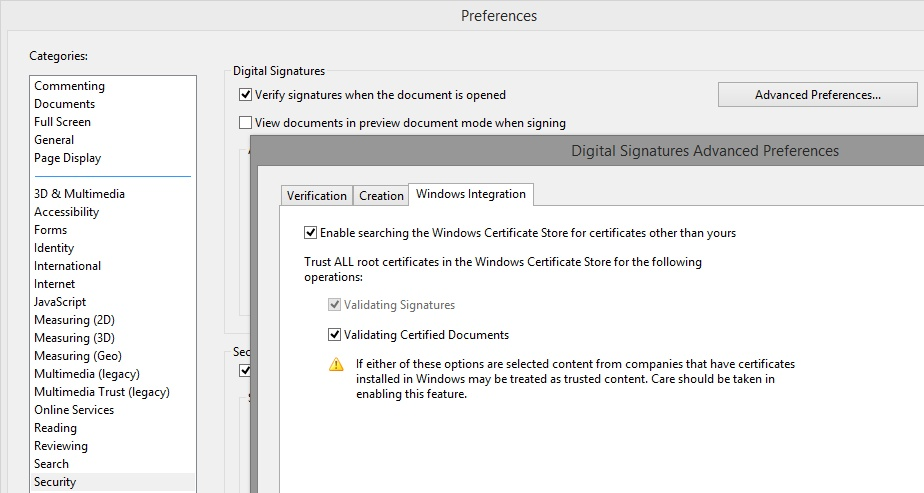
Adobe warns that with this option, content from companies that have certificates installed in Windows may be treated as trusted. Windows trusts many more authorities than Adobe. In a company with managed computers this is often the simplest method; on a personal computer, trusting only the one root you need (section 4) is the more careful choice.
6. Solution 3: one file for all the computers (FDF)
When many people must validate the signatures of the same authority, you do not need to repeat section 4 on every computer. Export the root certificate once, as an Adobe FDF file (Acrobat Forms Data Format), and send it to the recipients, or install it with the tools of your IT department.
Export the root certificate
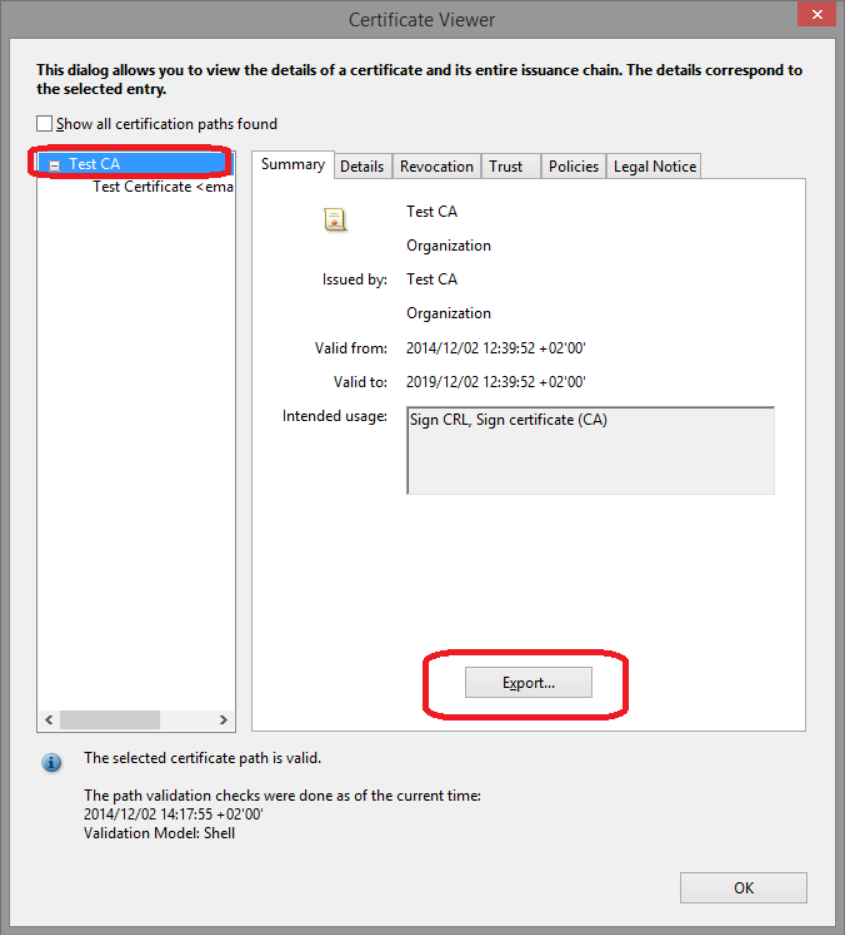
- Open the certificate viewer. In the properties of the signature, click Show Signer's Certificate... and select the root certificate at the top of the chain (not the signer's certificate).
- Export. In the tab Summary, click Export....
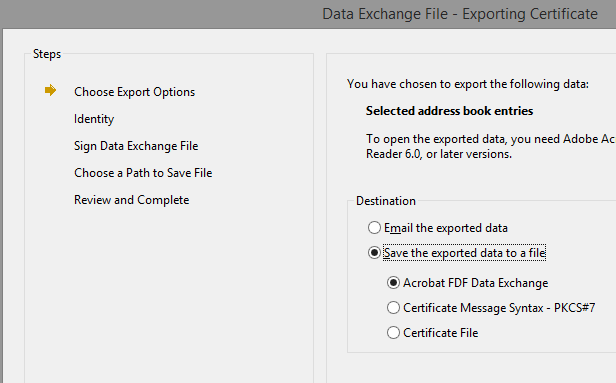
- Choose the FDF format. Select Save the exported data to a file and Acrobat FDF Data Exchange, then click Next through the steps.
- Save the file. Choose where to save it and click Finish.
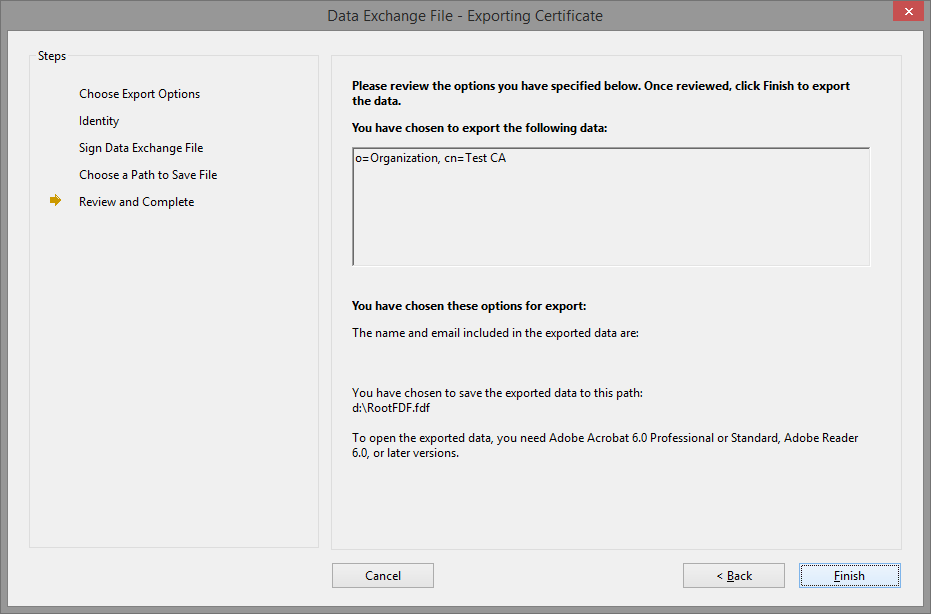
Import the FDF file on another computer
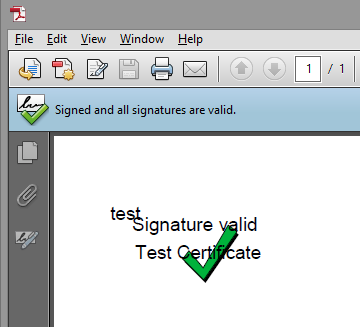
Before the import, the signature is yellow on that computer:
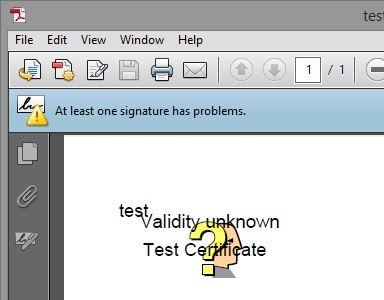
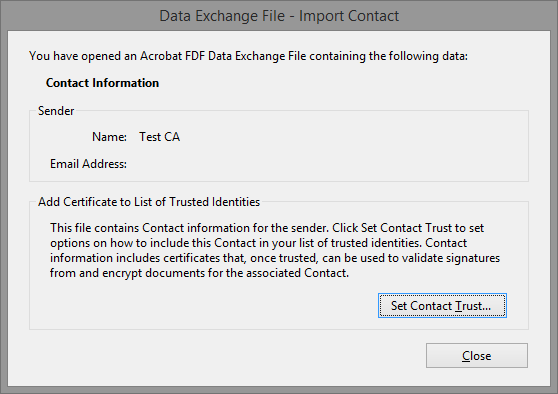
- Open the FDF file. Double-click it: Adobe opens the window Data Exchange File - Import Contact.
- Set the trust. Click Set Contact Trust..., tick Use this certificate as a trusted root and Certified documents (as in section 4), and click OK.
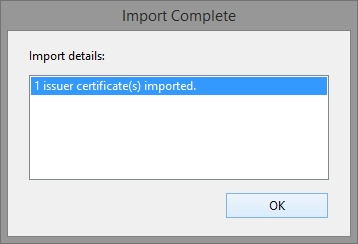
- Finish the import. Adobe confirms that the certificate was imported. Open the signed document again: it is green.
- Send the root certificate as a
.cerfile. The recipient opens Preferences → Signatures → Identities & Trusted Certificates → More... → Trusted Certificates → Import, selects the file and sets the trust as above. - In a company, the IT department can install the root in the Windows store of all the computers and turn on Windows Integration (section 5), or preconfigure Adobe with the tools of the Adobe Acrobat Enterprise Toolkit.
7. Time stamps that are not trusted
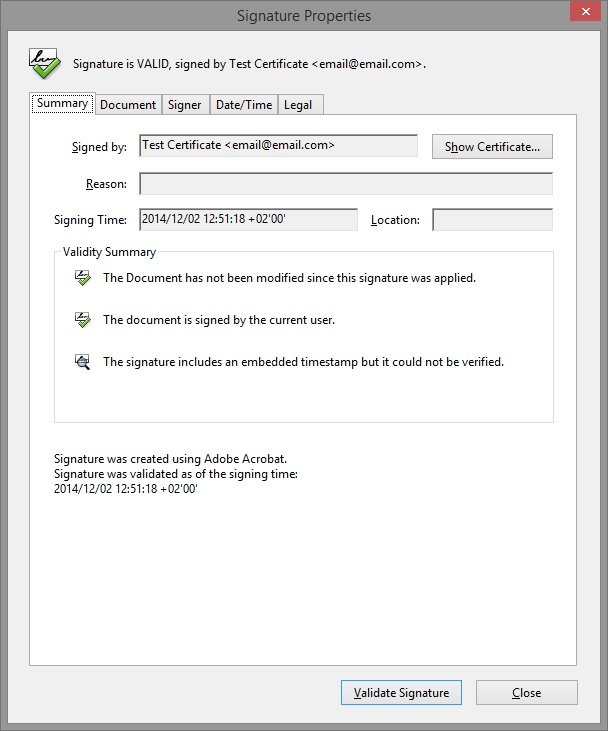
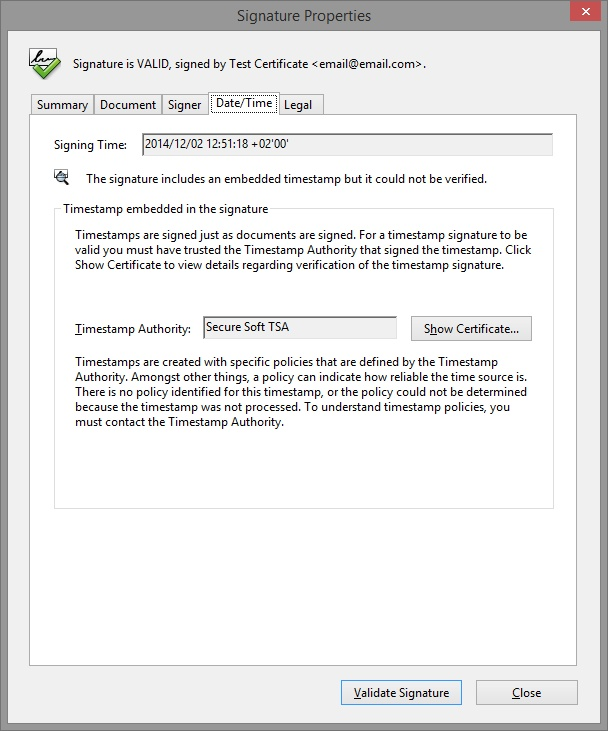
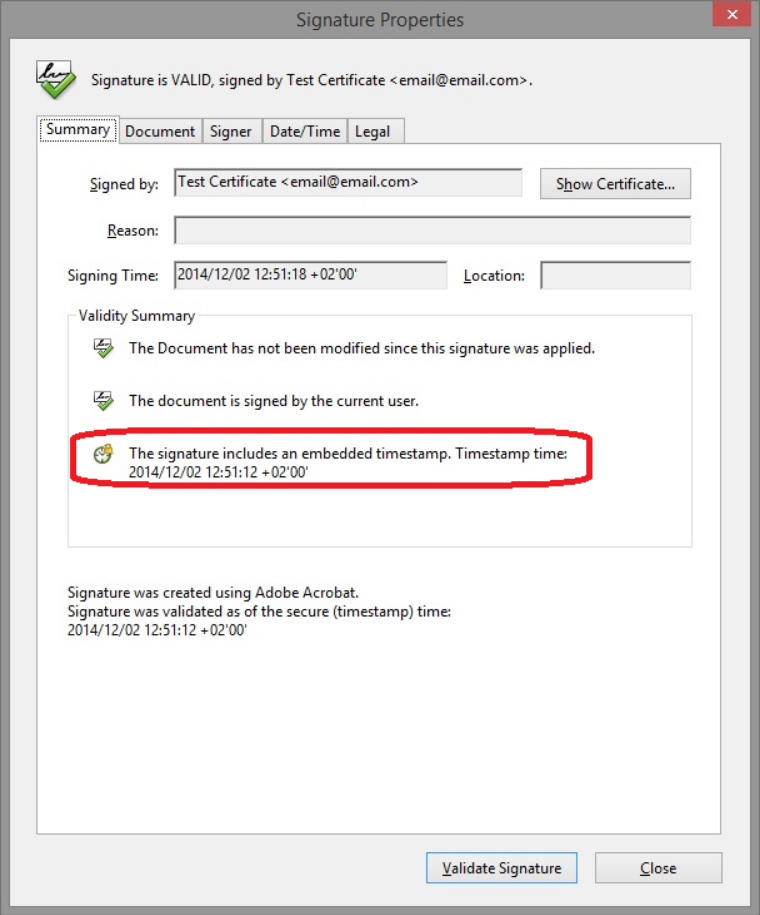
A time stamp proves when a document was signed. It is a separate signature, made by a Time Stamp Authority (TSA) with its own certificate. The same rule applies to it: if the root of the certificate of the TSA is not trusted in Adobe, Adobe cannot verify the time stamp and says The signature includes an embedded timestamp but it could not be verified. The signature itself can be valid.
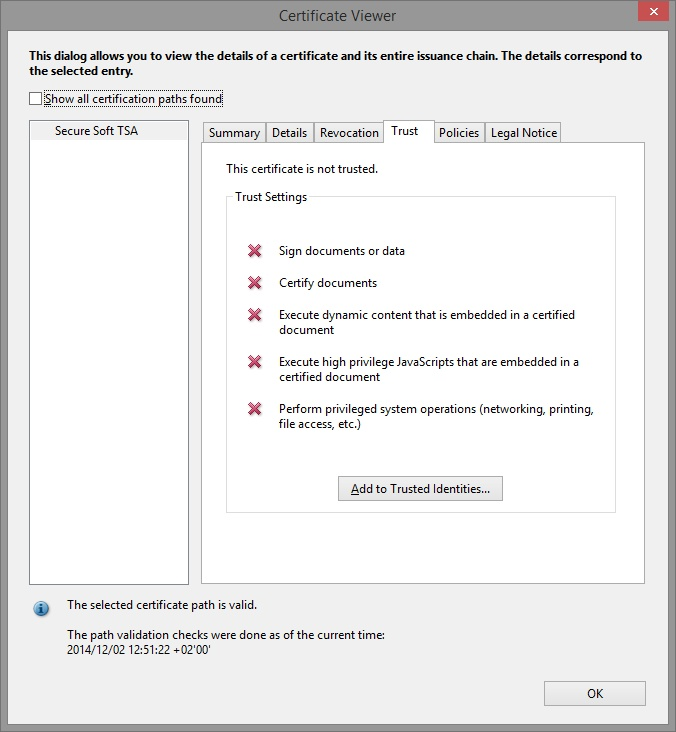
- Open the tab Date/Time. In the properties of the signature, open the tab Date/Time. It shows the Timestamp Authority.
- Open the certificate of the TSA. Click Show Certificate... and select the topmost certificate of its chain.
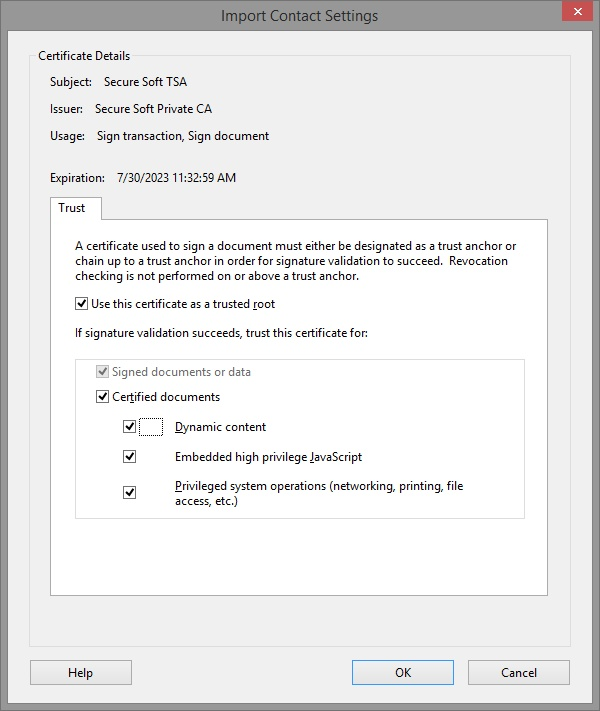
- Trust it. Tab Trust → Add To Trusted Certificates..., tick Use this certificate as a trusted root and click OK.
- Validate again. Close the windows and open the document again. Adobe now shows the time of the time stamp.
The time stamps of the authorities in the AATL and the qualified time stamps of the providers in the EU Trusted Lists are verified by Adobe without any setting. If you need eIDAS Qualified Timestamps with full legal effect across the EU, see https://qtsa.eu.
8. Revocation information that cannot be checked
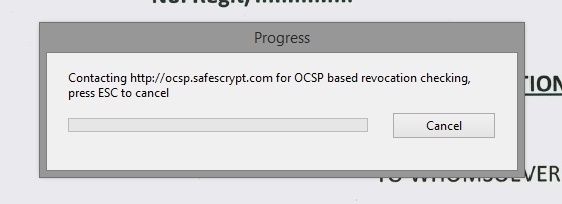
A certificate can be cancelled (revoked) by its authority before it expires, for example when a token is lost. To know whether the certificate was revoked, Adobe asks the authority over the Internet, through OCSP (an online answer about one certificate) or CRL (a list of the revoked certificates). If the answer cannot be obtained, Adobe cannot confirm the identity, even when the certificate is trusted and the document is intact.
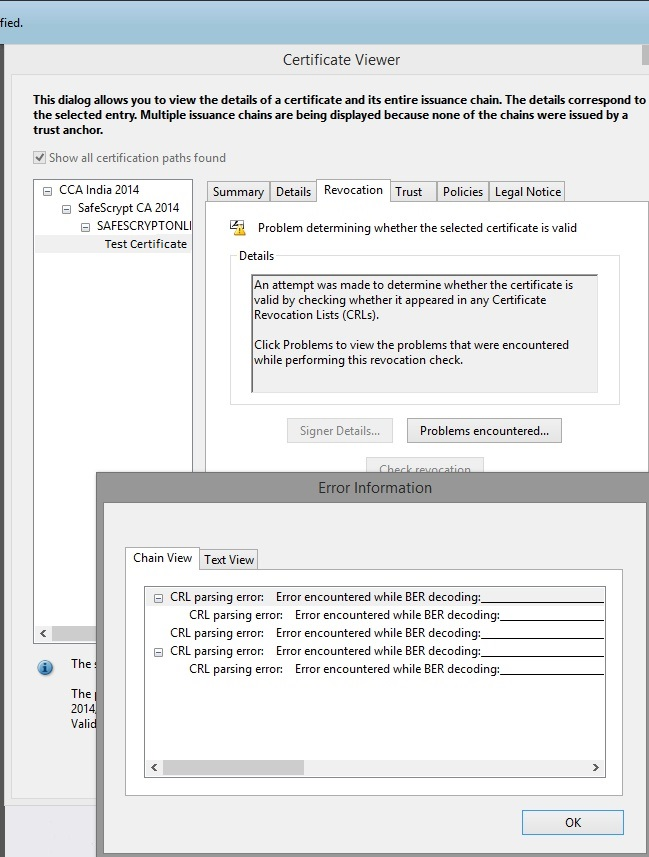
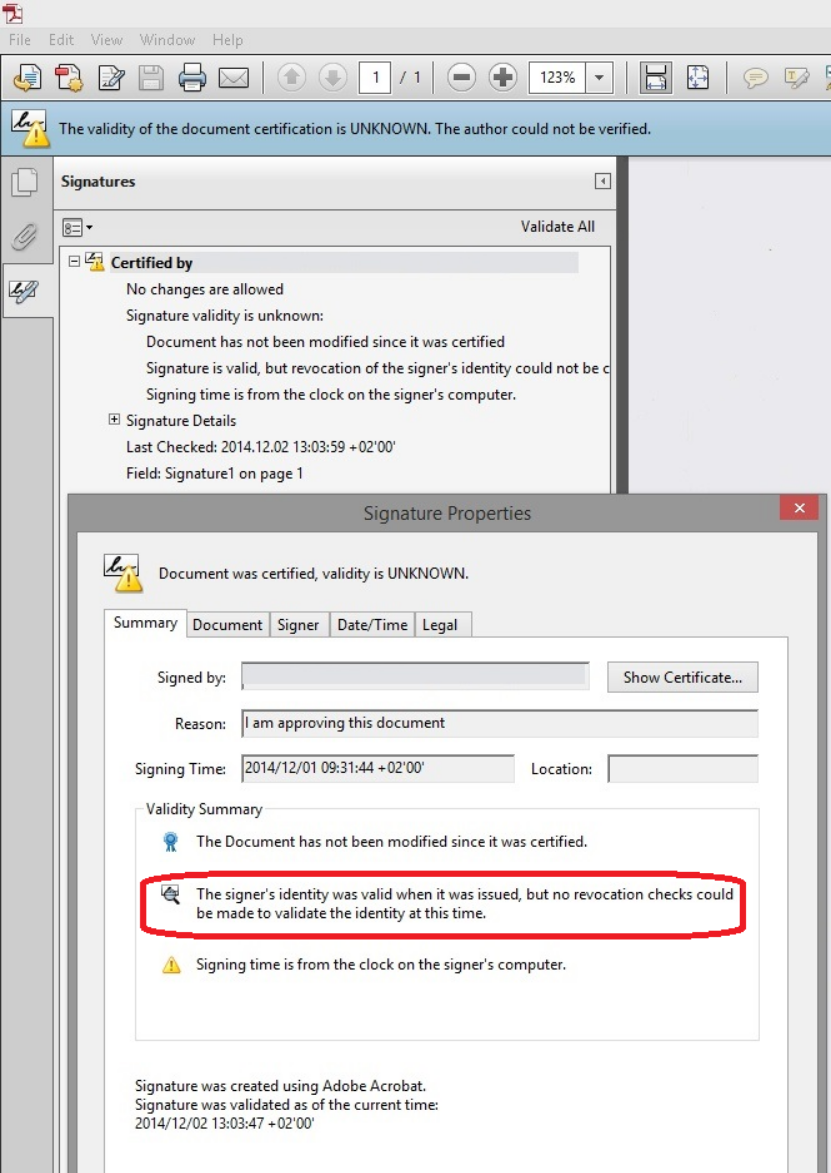
Typical messages: Revocation checking was not performed, The signer's identity was valid when it was issued, but no revocation checks could be made to validate the identity at this time, or Problem determining whether the selected certificate is valid.
What to do
- Check the connection. The computer must reach the OCSP and CRL addresses of the authority (they are written in the certificate, tab Details). Adobe uses the proxy settings of Windows: Preferences → Internet → Internet Settings. A firewall or a proxy that requires a password can block these requests.
- Ask the signer for a long-term signature. A long-term (LTV) signature, PAdES-B-LT or PAdES-B-LTA, contains the revocation answers obtained at the moment of signing, so Adobe does not need to go on the Internet, also years later. This depends on the format of the signature and on the authority, which must provide the OCSP or CRL answers.
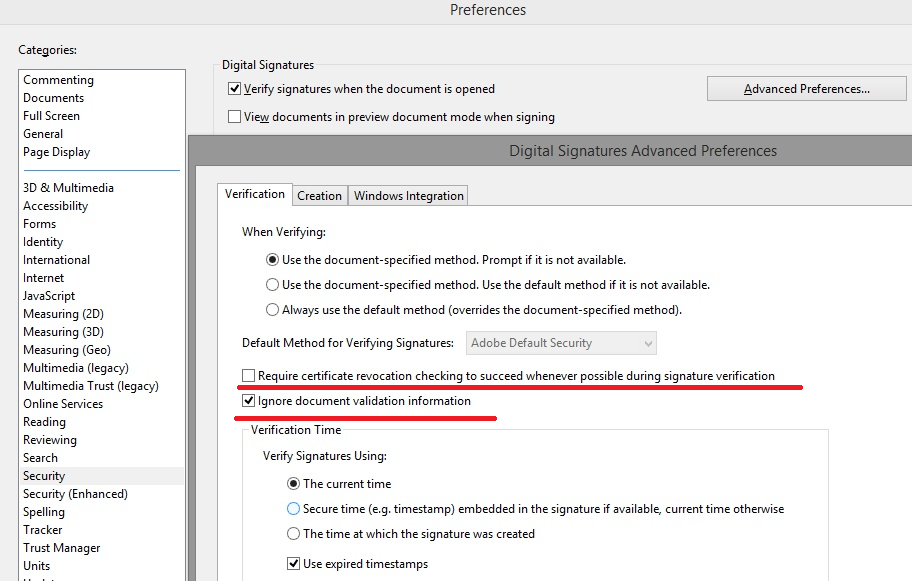
- Check the verification settings. Open Preferences → Signatures → Verification → More... (older versions: Security → Advanced Preferences... → Verification):
- Require certificate revocation checking to succeed whenever possible during signature verification: when it is ticked, a revocation check that cannot be made turns the signature yellow. Untick it if you cannot reach the servers of the authority.
- Ignore document validation information: when it is ticked, Adobe ignores the revocation data stored in the document (LTV). Leave it unticked; tick it only when the data stored in the document is damaged, as in the CRL error above, so that Adobe asks the authority on line.
- Validate again. Click Validate All in the Signatures panel or open the document again.
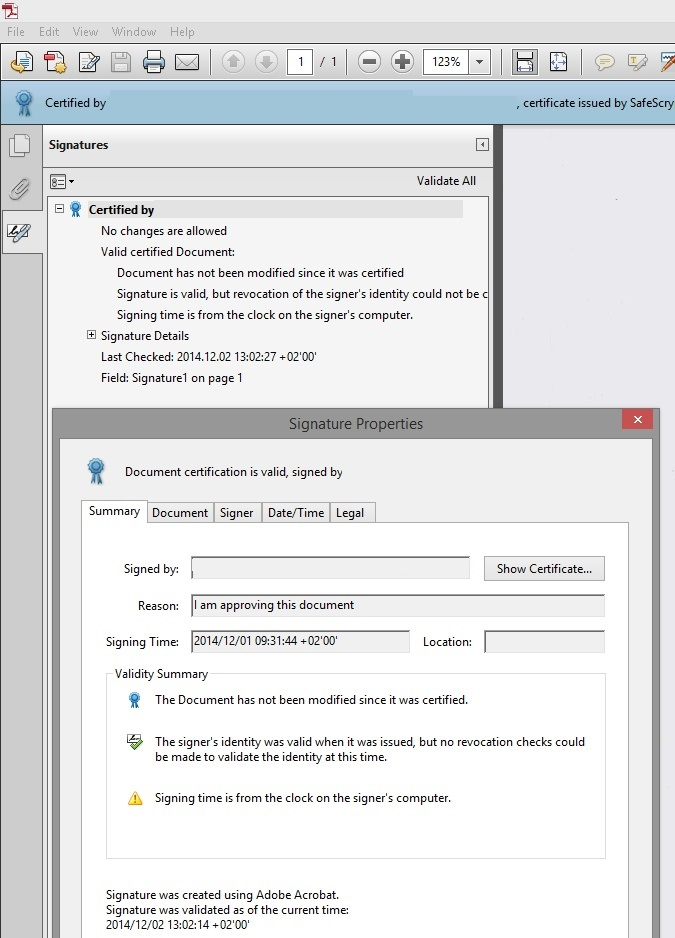
Turning the revocation check off means that you accept a signature without knowing whether the certificate was cancelled. Prefer to fix the connection, or ask for long-term signatures, and change these settings only when you know why the check fails.
9. Other reasons for a yellow signature
The certificate has expired
Every certificate has an end date. A signature made while the certificate was valid stays good, but Adobe must be able to prove when it was made. If the signature has no trusted time stamp, the only time available is the clock of the signer's computer (Signing time is from the clock on the signer's computer), and after the certificate expires Adobe may report the signature as a problem.
- The signer: use a signature with a trusted time stamp, and preferably a long-term signature (PAdES-B-LT or B-LTA), for documents that must be checked after the certificate expires. Renew the certificate before it expires.
- The recipient: in Preferences → Signatures → Verification → More..., under Verification Time, choose Secure time (timestamp) embedded in the signature, so that Adobe checks the certificate at the time proved by the time stamp.
The chain of the certificate is incomplete
Adobe must find every certificate between the signer and the root. If an intermediate certificate of the authority is missing, Adobe cannot build the path and the identity stays unknown, even when the root is trusted. The signature can contain only the certificates that are installed on the signing computer, so the intermediate certificates of the authority must be installed there. They are usually installed by the software of the token or smart card, or can be downloaded from the site of the authority. The recipient can also import the intermediate certificate as in section 6.
The document was changed after the signature, but the change is allowed
Some changes after a signature are allowed: filling in a form field, adding a comment, adding another signature. When such a change is not signed (for example, a form field filled in after the last signature), Adobe marks the signature with a yellow warning, so that you look at what changed. In the Signatures panel, use View Signed Version to see the document exactly as it was signed, and compare it with the current one. If the change is expected, there is nothing to repair; to avoid the warning, sign the document after all the fields are filled in.
10. Red: the signature is invalid
A red cross is different from the yellow warning: it is not about trust, it means that the check of the document or of the certificate failed. A red signature cannot be repaired by changing settings in Adobe, and it must not be ignored. It is, in fact, the proof that the digital signature does its job: it detected something.
10.1 The document was changed after signing
Adobe says Signature is INVALID and The document has been altered or corrupted since the signature was applied. The bytes of the document are not the ones that were signed. The usual causes:
- the signed file was opened and saved again by a program that rewrites the whole PDF instead of adding the changes at the end: online PDF converters and compressors, Print to PDF, Save As with a reduction of the file size, merging or splitting tools, OCR, adding a watermark, a header or page numbers, flattening the form fields, removing pages;
- a system processed the file after signing: a document management system, an archive that converts to PDF/A, an e-mail gateway or a scanner workflow that “optimizes” the PDF documents;
- the file was damaged during the transfer: an incomplete download, an FTP transfer in text (ASCII) mode, a program that changed the encoding of the file;
- the document was signed too early, and the last corrections were made after the signature.
The changes that the PDF standard allows (more signatures, form filling, comments, saved as incremental updates at the end of the file) do not make the earlier signatures invalid.
What to do
- See what was signed. In the Signatures panel, click View Signed Version (in the older versions Click to view this version) to see the document as it was when signed.
- Get the original signed file. Ask the signer for the file exactly as it was signed, sent as an attachment or as a download, not processed by another system. Compare the size of the two files.
- Sign again, as the last step. A broken signature cannot be repaired: the signer must sign the final version again. Make all the changes before signing, and after signing do not open and save the file in programs that rewrite it.
10.2 Certified, then signed again: the certification is lost
A certifying signature is the signature of the author of a document. It must be the first signature of the document, and it sets which changes are still allowed afterwards. Adobe offers three levels when a document is certified:
| Level of the certification | What the others can still do without breaking the certification |
|---|---|
| No changes allowed | Nothing. Any change, also another signature, breaks the certification. |
| Form fill-in and digital signatures | Fill in the form fields and sign. |
| Annotations, form fill-in, and digital signatures | Fill in the form fields, add comments and sign. |
The most frequent case: the author certifies the document with No changes allowed and sends it to other people, who sign it too. The new signature is a change that the author did not allow, so Adobe shows the certification as invalid (the blue ribbon with a red mark), although the new signature itself may be correct. Adobe can prevent the signing of such a document, but other programs, and other ways of signing, cannot know that the author wanted to forbid it.
| What happened | Result in Adobe |
|---|---|
| Certified with No changes allowed, then signed by someone else | Certification invalid |
| Certified with Form fill-in and digital signatures, then a comment was added | Certification invalid — comments are not allowed at this level |
| Certified with Form fill-in and digital signatures, then filled in and signed | Certified, valid |
| Signed first, and certified afterwards | Not allowed: a certifying signature must be the first one, so the certification is not accepted as such |
| Certified, then saved again by a program that rewrites the file | Invalid — as in section 10.1 |
What to do
- Go back to the original document. A lost certification cannot be restored in the same file. Start again from the document before the certification.
- Certify with the right level, first. If other people must sign after you, certify with Form fill-in and digital signatures (or with Annotations, form fill-in, and digital signatures if they must also add comments). Use No changes allowed only for the last, final version that nobody else signs.
- Or do not certify at all. If you only want to sign, use a normal (approval) signature. Certification is for the author of a document that others will complete or sign, not for every signature.
- Let the others sign in order. After the certification, the other people sign one after another; each new signature keeps the earlier ones valid.
10.3 The certificate was revoked
If the authority revoked the signer's certificate before the document was signed (because the token was lost, the data of the person changed, or the person left the company), Adobe shows the signature as invalid. The revocation is decided by the certification authority, not by any program. The signer must obtain a new certificate and sign the document again.
A certificate revoked after the signing does not make the earlier signatures invalid, as long as a trusted time stamp, or the revocation data stored in a long-term signature, proves that the document was signed before the revocation.
11. Problems and solutions
| What you see in Adobe | What to do |
|---|---|
| At least one signature has problems and The signer's identity is unknown because it has not been included in your list of trusted identities… | The root of the certificate is not trusted in Adobe. It is not an error of the signing program. Trust the root (section 4), use the Windows store (section 5) or import an FDF file (section 6). For a permanent solution, the signer uses an AATL or a qualified certificate (section 3). |
| The signer's certificate has not been issued by a certificate authority that you have trusted | The same cause: trust the root authority (section 4). |
| The certificate is OK in Windows, but yellow in Adobe | Adobe does not use the Windows list by default. Turn on Windows Integration (section 5) or trust the root in Adobe (section 4). |
| A qualified or AATL certificate is yellow on one computer only | The trusted lists of that computer are not up to date: Preferences → Trust Manager → Update Now (section 3). |
| The signature includes an embedded timestamp but it could not be verified | Trust the root of the time stamp authority (section 7). |
| Revocation checking was not performed, no revocation checks could be made, Problem determining whether the selected certificate is valid | Check the Internet connection and the proxy, ask for a long-term signature, check the verification settings (section 8). |
| Signing time is from the clock on the signer's computer | Only information: the signature has no trusted time stamp. It does not make the signature yellow by itself, but it matters after the certificate expires (section 9). |
| The signature became yellow after the certificate expired | Sign with a trusted time stamp or a long-term signature; check Verification Time (section 9). |
| The root is trusted but the identity is still unknown | The chain is incomplete: an intermediate certificate is missing (section 9). |
| Yellow warning after a form was filled in | A change after the last signature that was not signed. Look at View Signed Version; sign after filling in (section 9). |
| At least one signature is invalid and The document has been altered or corrupted since the signature was applied | The file was changed after signing. Get the original signed file, or sign again the final version (section 10.1). |
| The blue ribbon has a red mark: the certification is invalid | The document was changed, or signed again, in a way that the certification did not allow. Certify again the original with the right level (section 10.2). |
| The validity of the document certification is UNKNOWN. The author could not be verified. | The certification itself is intact; the certificate of the author is not trusted or its revocation cannot be checked (sections 4 and 8). |
| The signer's certificate was revoked | The signer needs a new certificate and must sign again (section 10.3). |
12. Glossary
| Term | In plain words |
|---|---|
| Digital signature | An electronic seal added to a document. It shows who signed and that the content was not changed. |
| Digital certificate | The electronic identity card of the signer, issued by a certification authority. It is stored inside the signature. |
| Certification authority (CA) | The organization that checks the identity of a person or a company and issues its certificate. |
| Root certificate / Root CA | The certificate at the top of the chain, signed by itself. A program trusts it only if it is already in its list. |
| Intermediate certificate | A certificate between the root and the signer's certificate. It must be available to build the chain. |
| Chain of trust | The path from the signer's certificate, through the intermediate certificates, up to the root. |
| Trust anchor | A root certificate that a program trusts; every certificate issued under it is trusted too. |
| Trusted Certificates (Trusted Identities) | The list of the certificates that the user of a computer trusts in Adobe. |
| AATL | Adobe Approved Trust List: the certification authorities whose document signing certificates Adobe trusts automatically. |
| EUTL | European Union Trusted Lists: the lists of the qualified trust service providers of the EU. Adobe trusts their qualified certificates automatically. |
| Qualified certificate | A certificate issued by a qualified trust service provider of the eIDAS Regulation, listed in the EU Trusted Lists. |
| Self-signed certificate | A certificate that is its own root. It works technically but nobody else trusts it. Use it only for tests. |
| Windows certificate store | The place where Windows keeps its certificates and its trusted roots. Open it with certmgr.msc. Adobe uses it only if Windows Integration is turned on. |
| FDF file | Acrobat Forms Data Format: a file that can carry a certificate and its trust settings from one computer to another. |
| Fingerprint (SHA-256 digest) | A short value that identifies a certificate. Two copies of the same certificate have the same fingerprint. |
| Hash | A short fingerprint of the document. If the document changes, the hash changes and the signature becomes invalid. |
| Time stamp / TSA | A proof of time issued by a trusted independent service, the Time Stamp Authority. |
| Revocation, OCSP, CRL | A certificate cancelled by its authority before it expires is revoked. OCSP and CRL are the two ways to ask the authority about it. |
| LTV / long-term signature | Long Term Validation: the signature carries the certificates and the revocation answers, so it can be validated without Internet and after the certificate expires (PAdES-B-LT, PAdES-B-LTA). |
| Approval signature | A normal signature. A document can have any number of them. |
| Certifying signature | The first signature of the author of a document, which also sets which changes are allowed afterwards. Shown with a blue ribbon. |
| Incremental update | A change saved at the end of a PDF file, without rewriting what was signed. This is how more signatures, form data and comments are added. |
13. Warning and disclaimer, trademarks
Every effort has been made to make this guide as complete and accurate as possible, but no warranty or fitness is implied. The information provided is on an “as is” basis. The author shall have neither liability nor responsibility to any person or entity with respect to any loss or damages arising from the information contained in this guide. Changing the trust and verification settings of a program is the decision of its user; trust only the authorities you know.
Adobe, Acrobat and Reader are either registered trademarks or trademarks of Adobe Inc. Windows is a trademark of Microsoft Corporation. All other trademarks are the property of their respective owners.