 Download PDF Signer (Free 30-Day Trial)
PDF Signer is a Windows application that digitally signs PDF documents with X.509 certificates. It creates PAdES signatures (ETSI EN 319 142-1, baseline levels B-B, B-LT and B-LTA), the format used for advanced and qualified electronic signatures under the eIDAS Regulation (EU) No 910/2014, and the choice of the signature is simple: Standard, Long-term or Archive signature, each one explained in plain words. You can sign a single document, several documents selected together or a complete folder of documents in one operation, from the program window or automatically from the command line, without purchasing any additional software.
Lifetime license from 19 EUR – Free 30-day trial – 60 day money back guarantee. See prices and buy.

eIDAS-Compliant PAdES Signatures, QSCD and Qualified Certificates
The signatures created by PDF Signer follow the PAdES baseline profiles of ETSI EN 319 142-1, the standard for PDF advanced electronic signatures in the European Union. They can be verified with Adobe Reader, with the validation tool of the European Commission (DSS – eSignature validation) and with other eIDAS-compliant validators. The validator reports the signature format, the signer’s certificate, the time of the signature or of the time stamp, the revocation status and, based on the EU Trusted Lists, whether the certificate is qualified and whether its private key is stored on a qualified signature creation device (QSCD).
 Qualified certificates and QSCD – PDF Signer signs with qualified certificates whose private key is stored on a QSCD, such as a smart card or a USB token (for example SafeNet eToken). The private key never leaves the device: the signature is created inside it. A signature created with a qualified certificate on a QSCD is a qualified electronic signature (QES). According to Article 25 of the eIDAS Regulation, a qualified electronic signature has the equivalent legal effect of a handwritten signature and is recognised in all the Member States of the European Union.
Qualified electronic seals – A company or an institution can seal its documents (invoices, certificates, official letters) with a qualified certificate for electronic seals stored on a QSCD, in the same way. According to Article 35 of the eIDAS Regulation, a qualified electronic seal enjoys the presumption of the integrity of the data and of the correctness of the origin of the data to which the seal is linked.
Qualified time stamps – PDF Signer can add the time stamp of any server that follows RFC 3161, including the servers of qualified trust service providers. A qualified electronic time stamp enjoys, according to Article 41 of the eIDAS Regulation, the presumption of the accuracy of the date and the time it indicates and of the integrity of the data to which they are bound.
 We provide eIDAS Qualified Timestamps issued by a Qualified Trust Service Provider (QTSP) listed in the European Union Trusted Lists (EUTL) under the eIDAS Regulation. If you need eIDAS Qualified Timestamps with full legal effect across the EU, visit our dedicated website (https://qtsa.eu).
The qualification level of a signature is given by the certificate and by the device, not by the software. PDF Signer creates the signature in the format that the validators expect. For a qualified electronic signature or seal, use a qualified certificate on a QSCD issued by a qualified trust service provider. Advanced electronic signatures can be created with any valid X.509 certificate, including certificates stored in the Windows certificate store or in PFX files.
Digital Signature Certificate (DSC) in India: Sign PDF Documents with a Class 3 USB Token
PDF Signer is widely used in India to sign PDF documents with a Digital Signature Certificate (DSC). Under the Information Technology Act, 2000, a digital signature created with a DSC issued by a licensed Certifying Authority (a certification authority licensed by the Controller of Certifying Authorities, CCA) is recognised as a way to authenticate an electronic document. Since 1 January 2021 the certifying authorities issue only Class 3 DSC; the Class 2 certificates issued before that date can be used until they expire. A DSC is usually stored on a USB token (for example ePass, WatchData, SafeNet eToken or mToken), and the private key never leaves the token.
How to sign a PDF with your DSC, bulk signing with a DSC token and FAQ »
Benefits:
– Support for qualified certificates on QSCD, smart card, USB token, eToken, DSC
– Support for eIDAS digital certificates and electronic seals (EU Regulation 910/2014)
– Support for Class 3 DSC (Digital Signature Certificate) on USB token, for India (IT Act 2000)
– Standard, Long-term and Archive signatures (PAdES-B-B, B-LT and B-LTA, ETSI EN 319 142-1), plus a compatibility signature for older programs
– Signatures that can be verified with Adobe Reader and with the European Commission validator
– RFC 3161 time stamping, qualified time stamps and long-term validation (OCSP and CRL)
– SHA-256, SHA-384, SHA-512 support
– RSA and Elliptic Curve (ECDSA) certificates
– Visible or invisible signature, with a configurable appearance and your own image
– Certify and encrypt the signed PDF documents
– Sign documents protected with a password and documents with a damaged structure
– Bulk signing of folders and automatic signing from the command line
– Bypass smart card/USB token PIN for automatic signing
Features
 PAdES Standard – PDF Signer creates PAdES baseline signatures. You do not need to know the technical terms: the main window has a short list of four signature formats, in plain words, and a one-sentence explanation of the selected one. The technical name (the PAdES level) is shown when you rest the mouse on the list. Choose the format that matches the requirements of the system that receives your documents:
| Signature format | What it contains | Typical use |
|---|---|---|
| Standard signature (PAdES-B-B) – recommended | The signature, the signer’s certificate and the signing time | Invoices, contracts, reports and documents exchanged between organizations |
| Long-term signature (PAdES-B-LT) | A trusted time stamp plus the certificates and the proofs that the certificate was valid (OCSP or CRL) | Documents that must remain verifiable after the certificate expires |
| Archive signature (PAdES-B-LTA) | Everything from the long-term signature, plus a document time stamp | Documents archived for many years, such as accounting documents |
| Compatibility signature (PKCS#7) | The older Adobe-compatible signature, without time stamp | Only for older programs that do not accept PAdES signatures |

 Certificates, Smart Cards and USB Tokens – PDF Signer is completely PKI neutral and will work with PKI components from any vendor (this includes CAs, certificates, CRLs, smartcards, etc.). You can sign with a certificate from the Windows certificate store (smart card and USB token certificates are added to the store by the driver of the token), or with a PFX/P12 file. The certificate list shows only the certificates that can sign; the qualified certificates are marked, and the program shows the certificate provider, so you can see if the private key is stored on a device. A token inserted while the window is open appears after a click on Refresh. RSA and Elliptic Curve (ECDSA) certificates are supported. PDF Signer refuses to sign with an expired certificate, or with a certificate that is not valid yet, before any document is processed. When a certificate is not meant to sign documents (for example it was issued only for time stamping), the program shows a warning, so you can choose a better certificate before the validators report it.
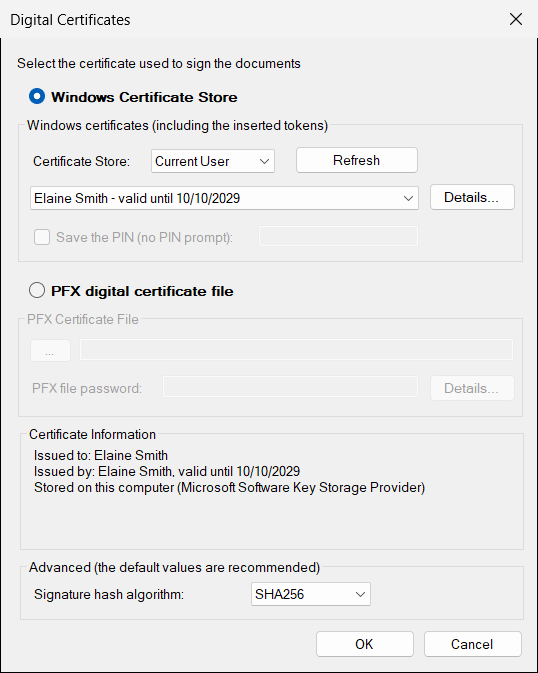
Bypass the Smart Card PIN – For automatic signing you can save the PIN of the smart card or of the USB token. It is available only for certificates stored on a device, it is stored encrypted and it belongs to the selected certificate. If the device rejects the PIN, PDF Signer stops using it, so the token is not locked by repeated wrong attempts.
 Time Stamping – The Long-term signature and the Archive signature include a RFC 3161 time stamp, issued by a time stamp authority (TSA). The time stamp proves that the signature existed at a given moment and that the document was not changed after that moment. You can configure the TSA address, the authentication, the policy and the use of a nonce, and a Test the Server button checks the server before you sign and tells you who issued the time stamp and whether it is a qualified time stamp. Only a hash is sent to the TSA: your document does not leave your computer.
 Long-Term Validation – The Long-term signature and the Archive signature (PAdES-B-LT and PAdES-B-LTA) embed the certificates and the revocation data (OCSP responses and CRLs) of the signer, collected automatically in the recommended way, so the signature can be verified even after the signer’s certificate expires or is revoked and the servers of the issuer are no longer available.
 SHA-256, SHA-384, SHA-512 Algorithms – PDF Signer can digitally sign PDF documents using the SHA-256, SHA-384 or SHA-512 hash algorithms. The hash algorithm of the signature and of the time stamp request are configurable. SHA-1 can still be selected for older systems, with a warning.
 Configurable Signature Appearance – The signature can be visible or invisible. You choose the page (first, second, last, all pages or a list of pages), one of six positions or exact coordinates, the font, the text (name of the signer, reason, place, date, or your own text) and an image, such as a scan of the handwritten signature or the logo of the company. By default the signature appears in the lower right corner of the last page.

 Document Certification and Encryption – When you certify a PDF, you indicate that you approve of its contents and you decide which changes are still allowed. You can also encrypt the signed document with an open password and a permissions password, and allow or forbid printing and copying.
Protected and Damaged Documents – PDF Signer signs the PDF documents that are protected with a password (with the owner password) and keeps their protection. A document with a damaged structure is rebuilt before it is signed; if it is already signed, the program tells you that the rebuild makes the existing signatures invalid and asks you first.
Bulk and Automatic Signing – Select several documents together, or select an input folder and an output folder, and PDF Signer signs all of them, with a progress indicator. The same operation can run without user intervention from the command line, from a script or from the Windows Task Scheduler. Different signature configurations (certificate, format, appearance, time stamp) can be saved in files and used for different folders. The program returns a result code (0 for success, 1 for errors, 2 if it could not start) and writes log files, so the process can be monitored.
Check the Signatures – The Document Properties window shows the signatures of a document, the signer, the reason and the place, the hash algorithm, whether the document was changed after it was signed, and the time stamp. A signed document is displayed as valid by Adobe Reader without any setting when the certificate is issued by a provider listed in the EU Trusted Lists; for the other certificates, the user manual explains how to trust the certificate.
Built on the .NET Digital Signature Library – PDF Signer uses the same Signature Library (SignLib) that is available to developers. You can test a signature format, a hash algorithm or a certificate in the program and then create the same signatures from your own application in C#, VB.NET or Windows PowerShell. See Digitally Sign a PDF File in Visual Studio with C#.
Need more features? If you need to watch a folder and sign the new documents automatically, to send the signed files by e-mail, to upload them to an FTP server or to use an HSM through the PKCS#11 interface, see PDF Signer Server.
Where PDF Signer Is Used
– Invoices, contracts, offers and reports that must be signed and sent by e-mail
– Documents sent to public administration and other systems that require PAdES signatures
– Qualified electronic signatures and seals with a smart card or a USB token
– Archives of PDF documents that must remain verifiable in the long term
Before you start, check the signature format required by the receiving system (for example PAdES-B-B or PAdES-B-LT, which are the Standard signature and the Long-term signature of PDF Signer), and choose the same format in PDF Signer.
Frequently Asked Questions
Does PDF Signer create qualified electronic signatures?
PDF Signer creates PAdES signatures. When you sign with a qualified certificate whose private key is stored on a QSCD (a smart card or a USB token), the result is a qualified electronic signature (QES) in the sense of the eIDAS Regulation; with a qualified certificate for electronic seals the result is a qualified electronic seal. With any other valid certificate the result is an advanced electronic signature.
Which format should I choose?
The Standard signature (PAdES-B-B) is the right choice for most documents. Use the Long-term signature (PAdES-B-LT) when the signature must stay verifiable after the certificate expires, with a time stamp that proves the exact time of the signature, and the Archive signature (PAdES-B-LTA) for documents archived for many years. The Compatibility signature (PKCS#7) is only for older programs.
How can I check the signatures?
Open the signed document with Adobe Reader, or use the Document Properties window of PDF Signer. For a validation according to the eIDAS rules, use the validation tool of the European Commission (DSS) or another eIDAS-compliant validator.
Can I sign with a smart card or a USB token?
Yes. Install the driver of the token, select its certificate from the Windows certificate store and, if you wish, save the PIN for automatic signing.
Can I sign many PDF files automatically?
Yes. Select an input folder and an output folder, or start PDF Signer from the command line with the source, the destination and an optional configuration file.
Are my documents sent to a server?
No. The documents are signed on your computer. An Internet connection is used only for the time stamp (a hash is sent to the time stamp server) and for the revocation data of the Long-term and Archive signatures.
Can I sign a PDF with my Class 3 DSC USB token?
Yes. Install the driver of the token, insert it, select the DSC in PDF Signer and sign. The token asks for its PIN, and the signature is created inside the token.
Does PDF Signer work with the DSC of any Indian certifying authority?
PDF Signer is PKI neutral and works with the X.509 certificates of any licensed certifying authority (for example eMudhra, Capricorn, nCode, Protean or Sify) that Windows can use, from a USB token, a smart card, the Windows certificate store or a PFX file.
Is a signature made with a DSC valid in India?
The Information Technology Act, 2000 recognises the digital signatures created with a DSC issued by a licensed certifying authority. The formats and the checks required by a particular portal or department are decided by that portal, so check its instructions before you upload the document.
Can I sign hundreds of PDF files at once with a DSC token?
Yes. Select a source folder and a destination folder and PDF Signer signs all the documents. With the option Save the PIN, supported by many tokens, you do not have to type the PIN for every document.
Which hash algorithms are supported?
SHA-256, SHA-384 and SHA-512. SHA-1 can still be selected for older systems, with a warning.
Requirements:
– A digital certificate (eIDAS qualified digital certificates, QSCD are supported)
– Microsoft .NET Framework 4.6.2 or higher
– Windows 10 or later (including Windows 11 and Windows Server 2022)
 Licensing:
The license for PDF Signer is a lifetime license. There is no additional cost like monthly / annual fees or fees per use. When a new version is released you can continue using your purchased version as usual.
 The technical support and updates are free for 12 months after purchase. If you need help with our software, please contact us to receive prompt assistance from our technical support team. We offer free before-and-after purchase technical support for our programs. Technical support is provided by email only. Email response time is usually less than 24 hours.
 60 Day Money Back Guarantee – If you are not pleased with our software for any reason, you are entitled to our 60 day no hassle, no questions asked, money back guarantee.
Buy PDF Signer
| License type | Price (€) |
Buy with PayPal | Buy with credit card | |
|---|---|---|---|---|
| Single License (for 1 computer) |
19 EUR Lifetime License |
Buy with Card | ||
| Company License (for 10 computers) |
90 EUR Lifetime License |
Buy with Card | ||
| Technical Support | The technical support is free for 12 months after purchase. Purchase Upgrade and Support package. |
|||
Download PDF Signer (Free 30-Day Trial)
(latest version: 12.0)
Useful links:
- PDF Signer Server (watch folder, e-mail, FTP, PKCS#11)
- Digitally Sign a PDF File in Visual Studio with C#
- Automatic PDF Digital Signature (Bypass Certificate PIN) in C#
- Digitally Sign a PDF File in PowerShell
- .NET Digital Signature Library
- eIDAS Qualified Timestamps
- Validating Digital Signatures in Adobe
- XML Signer (XAdES)
- P7S Signer (P7M and CAdES)