 Download P7S P7M Viewer (Free 30-Day Trial)
P7S P7M Viewer is a Windows application that opens files signed in the P7S, P7M or CMS format (PKCS#7 / CAdES) and tells you who signed them, when, and whether the signature is valid. It shows the signers, the signature format (CAdES-B-B, B-T, B-LT, B-LTA or CMS), the certificate status, the time stamps and the long-term validation data of the eIDAS signatures. It gives you back the original file, without the signature, and it can extract the original files from a whole folder of signed files. It works with files signed by P7S Signer and by any other signature software.
Lifetime license 19 EUR – Free 30-day trial – 60 day money back guarantee. See the price and buy.
How to open a P7S or P7M file
- Download and install P7S P7M Viewer (free 30-day trial).
- Open the .p7s, .p7m or .cms file in the program. It checks the signature on your computer and shows the signer, the signing date, the signature format and whether the signature is valid.
- Click Open unsigned file to open a copy of the signed document, without the signature, in the program associated with its type, or Save unsigned file to save the copy.
- For a detached signature, the program looks for the signed file next to the signature (for example invoice.pdf for invoice.pdf.p7s) and asks you to select it if it is not found.
How do I open a P7S or P7M file?
Open it with P7S P7M Viewer: the program checks the signature on your computer and shows who signed the file, when, and whether the signature is valid. The Open unsigned file button opens a copy of the signed document, without the signature, in the program associated with its type.
How can I read a PDF or XML invoice received as a .p7m file?
Open the .p7m file with P7S P7M Viewer and click Open unsigned file: it opens a copy of the signed document, without the signature. This is the way to read, for example, an XML invoice or a PDF contract that you received as a .p7m file.
Check CAdES and eIDAS Signatures
The files with the extension .p7s, .p7m or .cms contain a PKCS#7 / CMS signature (RFC 5652), and the CAdES signatures (ETSI EN 319 122-1) that the eIDAS Regulation (EU) No 910/2014 uses for advanced and qualified electronic signatures are stored in the same kind of file. P7S P7M Viewer reads both. When you open a file, the program checks the signature on your computer and shows:
– the signer and the issuer of the certificate
– the signature format (for example CAdES-B-B, CAdES-B-T, CAdES-B-LT, CAdES-B-LTA, CMS)
– the signing date, and whether it is declared by the signer or certified by a time stamp
– the signature algorithm (RSA or ECDSA, with the hash algorithm) and the name of the signed file
– the certificate status (valid, expired, not valid yet)
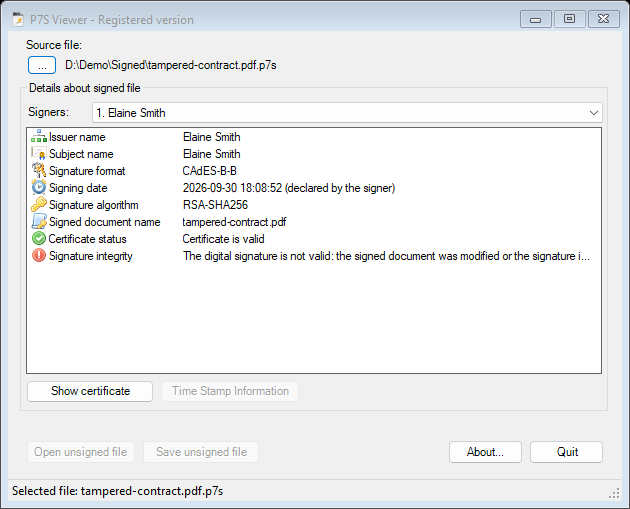
– the signature integrity: valid, or not valid if the file was changed after signing
– the time stamp (time stamp authority, time, policy, serial number), the archive time stamps and the certificates, OCSP responses and CRLs stored inside the long-term signatures
 Quick check and formal validation – P7S P7M Viewer is a fast way to read a signed file and to see its format and its time stamps. It does not use the EU Trusted Lists. To find out whether a signature is a qualified electronic signature (qualified certificate, QSCD), validate the file with the validation tool of the European Commission (DSS – eSignature validation) or with another eIDAS-compliant validator. The report of the program and the report of the validator complete each other.
Benefits:
– Opens P7S, P7M and CMS files (PKCS#7 / CAdES) signed by any software
– Shows the CAdES level: B-B, B-T, B-LT, B-LTA, and the legacy CAdES-C and CAdES-X Long
– Shows the time stamps (RFC 3161) and the long-term validation data
– Shows if the file was changed after it was signed
– Files with several signers: every signature is checked and displayed
– Detached signatures, with the original file
– Gives you back the original file, to open it or to save it without the signature
– Extracts the original files from a whole folder of signed files, from the command line
– RSA and Elliptic Curve (ECDSA) signatures, SHA-256, SHA-384, SHA-512
Features
 Signers and Certificates – A file can be signed by several people. P7S P7M Viewer lists every signer and, for the selected one, shows the certificate details. The Show certificate button opens the Windows certificate window. A signature whose certificate expired after the signing is reported correctly when the signature has a time stamp made while the certificate was valid.
 Time Stamps – For the signatures with a time stamp (CAdES-B-T and above), the program shows the time stamp authority, the time, the policy, the serial number and the nonce, and checks that the time stamp matches the signature. The Time Stamp Information button shows all the details and the certificate of the time stamp authority.
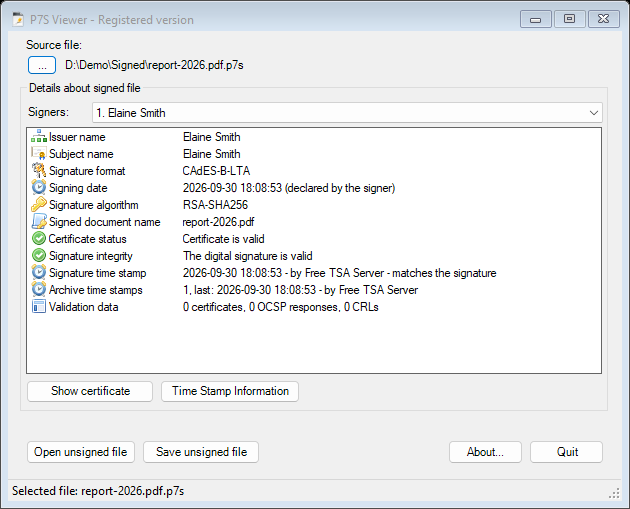
 Long-Term Validation Data – For the CAdES-B-LT and CAdES-B-LTA signatures, the program shows how many certificates, OCSP responses and CRLs are stored inside the signature, and how many archive time stamps it has.
Modified Files – If somebody changes the file after it was signed, the program reports that the signature is not valid and it disables the buttons that give you the original file.
Detached Signatures – A detached signature contains only the signature. The program looks for the signed file next to the signature (for example invoice.pdf for invoice.pdf.p7s) and asks you to select it if it is not found.
Open and Save the Original File – The Open unsigned file button opens a copy of the signed document, without the signature, in the program associated with its type. Save unsigned file saves the copy. This is the way to read, for example, an XML invoice or a PDF contract that you received as a .p7m file. If the signed file is a program or a script, the program asks for your confirmation before it opens it.
Extract the Files of a Whole Folder – From the command line, "P7S Viewer.exe" unsign <source folder> <destination folder> checks the signature of every .p7s, .p7m and .cms file of the source folder and saves the original files in the destination folder. A certificate that expired is not an error. The files that cannot be opened or whose signature is not valid are copied to the errors folder, with a log (errors.log), and the program returns a result code (0 for success, 1 if at least one file has errors), so the operation can run from a script or from a scheduled task.
Included with P7S Signer – P7S P7M Viewer is installed together with P7S Signer. If you only need to read and check signed files, you can install it alone.
Where P7S P7M Viewer Is Used
– Reading the documents received in .p7m files (contracts, invoices, official documents)
– Checking who signed a file and whether it was changed
– Checking the time stamps and the long-term validation data of the CAdES signatures
– Extracting the original files from folders of signed files, before the files are processed by other systems
Frequently Asked Questions
Can P7S P7M Viewer open files signed by other software?
Yes. It opens the P7S, P7M and CMS files (PKCS#7 / CAdES), whatever the program that created them.
Does it show if a signature is a qualified electronic signature?
The program shows the signer, the certificate, the signature format and the time stamps, but it does not use the EU Trusted Lists. For the qualification of the signature, use the validation tool of the European Commission (DSS).
What happens if the file was changed after it was signed?
The program reports that the digital signature is not valid. Ask the sender for the original signed file.
Can I get the original document from a .p7m file?
Yes. Use Open unsigned file or Save unsigned file. For many files, use the command unsign.
Does it need an Internet connection?
No. The signatures are checked on your computer.
P7S P7M Viewer Requirements:
– Microsoft .NET Framework 4.6.2 or higher
– Windows 10 or later (including Windows 11 and Windows Server 2025)
 Licensing:
The license for P7S P7M Viewer is a lifetime license. There is no additional cost like monthly / annual fees or fees per use. When a new version is released you can continue using your purchased version as usual.
 The technical support and updates are free for 12 months after purchase. If you need help with our software, please contact us to receive prompt assistance from our technical support team. We offer free before-and-after purchase technical support for our programs. Technical support is provided by email only. Email response time is usually less than 24 hours.
 60 Day Money Back Guarantee – If you are not pleased with our software for any reason, you are entitled to our 60 day no hassle, no questions asked, money back guarantee.
Buy P7S P7M Viewer
| Product | Price (€) | Buy with PayPal | Buy with credit card | |
|---|---|---|---|---|
| P7S P7M Viewer |
19 EUR Lifetime License |
Buy with Card | ||
| Technical Support | The technical support is free for 12 months after purchase | |||
Download P7S P7M Viewer (Free 30-Day Trial)
(latest version: 10.3)
Useful links: