PDF Signer is widely used in India to sign PDF documents with a Digital Signature Certificate (DSC). Under the Information Technology Act, 2000, a digital signature created with a DSC issued by a licensed Certifying Authority (a certification authority licensed by the Controller of Certifying Authorities, CCA) is recognised as a way to authenticate an electronic document. Since 1 January 2021 the certifying authorities issue only Class 3 DSC; the Class 2 certificates issued before that date can be used until they expire. A DSC is usually stored on a USB token (for example ePass, WatchData, SafeNet eToken or mToken), and the private key never leaves the token.
How to sign a PDF with your DSC
- Install the driver of the token and insert it; the DSC appears in the Windows certificate store.
- Start PDF Signer, click Select the Digital Certificate (and Refresh if you inserted the token after the window was opened) and choose your DSC.
- Select the PDF document and click Apply Digital Signature.
- The token asks for its PIN and the signature is created inside the token.
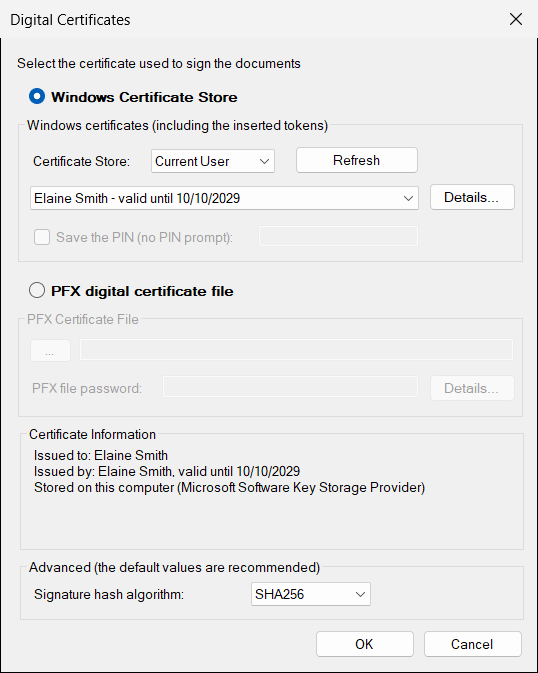
PDF Signer is PKI neutral: it works with the DSC issued by any licensed certifying authority (such as eMudhra, Capricorn, nCode, Protean or Sify), as long as the driver of the token makes the certificate available to Windows.
Typical uses of a DSC with PDF Signer
- Invoices, purchase orders, quotations, agreements and contracts, signed before they are sent to the customer
- Tender and e-procurement documents that must carry the DSC of the bidder
- Documents and attachments prepared for the portals of the government (for example the Ministry of Corporate Affairs, GST, Income Tax, EPFO, DGFT, GeM): check the requirements of every portal
- Audit reports, certificates and other documents signed by chartered accountants and company secretaries
- Salary slips, Form 16, offer letters and other HR documents, signed in bulk
- Legal documents, affidavits and notices
Bulk signing with a DSC token
Select a folder with hundreds of PDF documents and sign all of them in one operation, with the DSC on your token. For the tokens that accept it, Save the PIN avoids typing the PIN for every document; if the token rejects the PIN, PDF Signer stops using it, so your token is not locked. A visible signature shows the name from the DSC, the reason, the place and the date, and you can add the image of your signature or of the company seal.
SHA-256 and time stamp
PDF Signer signs with SHA-256 by default (SHA-384 and SHA-512 are available), the hash algorithm required by the interoperability guidelines of the CCA, and it can add an RFC 3161 time stamp. If Adobe Reader shows “signature validity is unknown” because it does not know the certifying authority of your DSC, trust the certificate once, as described in our guide Validating Digital Signatures in Adobe.
The same program creates eIDAS PAdES signatures for the European Union, so one tool serves both the Indian DSC and the European qualified certificates. See all the features of PDF Signer.
Frequently asked questions
Can I still use a Class 2 DSC?
Since 1 January 2021 the certifying authorities issue only Class 3 DSC; the Class 2 certificates issued before that date can be used until they expire.
Which certifying authorities and USB tokens are supported?
PDF Signer is PKI neutral: it works with the DSC issued by any licensed certifying authority (such as eMudhra, Capricorn, nCode, Protean or Sify), as long as the driver of the token makes the certificate available to Windows. A DSC is usually stored on a USB token, for example ePass, WatchData, SafeNet eToken or mToken.
Do I have to type the PIN for every document?
For the tokens that accept it, Save the PIN avoids typing the PIN for every document; if the token rejects the PIN, PDF Signer stops using it, so your token is not locked.
Why does Adobe Reader show “signature validity is unknown”?
Because Adobe Reader does not know the certifying authority of your DSC. Trust the certificate once, as described in our guide Validating Digital Signatures in Adobe.